
By default, Proxus stores all ingested data in its internal high-performance Time-Series database (ClickHouse). However, you often need to stream this data simultaneously to other systems, such as a cloud platform (AWS, Azure), a corporate data lake, or another MQTT broker. For more information about the internal database, see ClickHouse Integration.
This is managed via Outbound Channels.
This page covers direct device outbound routing.
If you need condition-based/event-based delivery, use Rule Engine + integration actions as described in Integrations Overview.
Related Integration Docs
The Data Splitter Architecture
An outbound channel is a destination for your telemetry. You can attach multiple outbound channels to a single device. Proxus acts as a high-speed data splitter, sending a copy of the normalized data to all active channels in parallel.
Device
Fieldbus / MQTT
Gateway Pipeline
Data Splitter
Internal DB
ClickHouse
Outbound Channels
Kafka / Cloud / DB
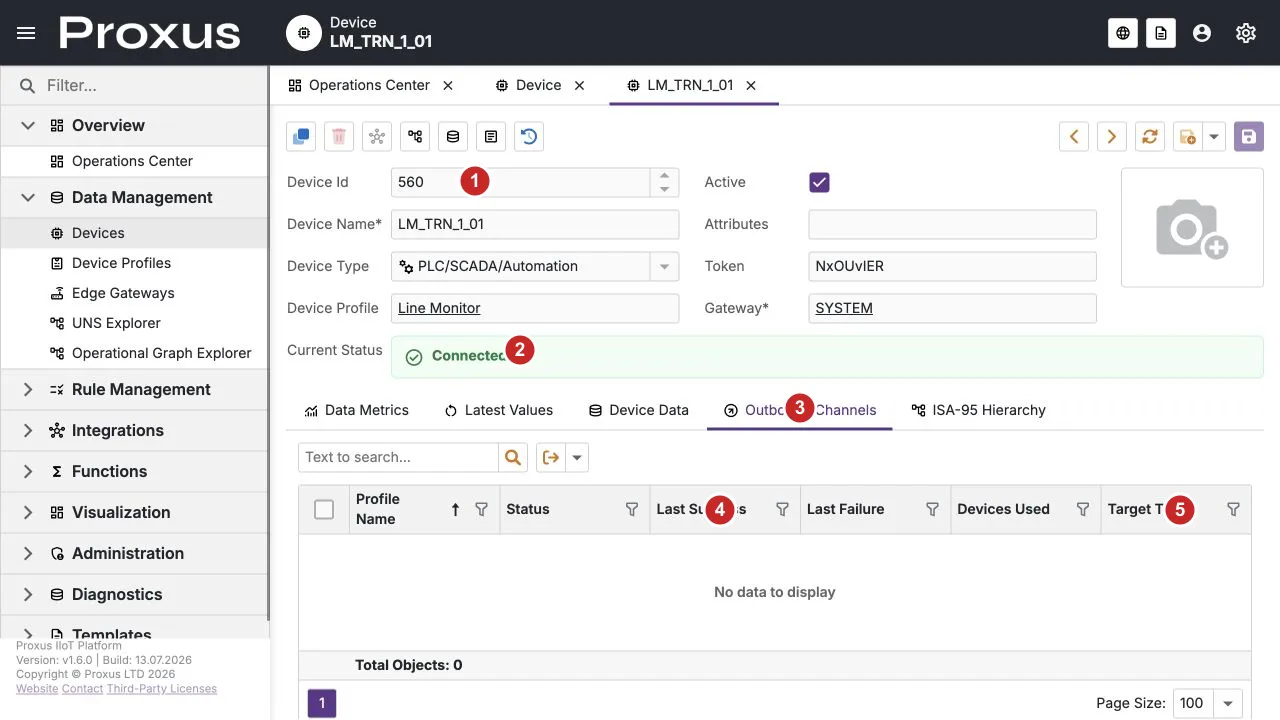
The runtime-verified view highlights the active state (1), connected status (2), Outbound Channels tab (3), the channel grid (4), and the target type column (5). This capture was verified against the English demo UI on 13 July 2026.
- SYSTEM INTERNAL DB: The default channel. Used for internal dashboards, alerts, and historical analysis.
- External Outbound Channels: Custom destinations like Kafka, InfluxDB, AWS IoT Core, or a corporate data lake.
Transport Strategy
Each outbound channel defines a Transport Strategy that controls how data is forwarded:
- Pass Through: Sends every data point to the target (best for full fidelity storage).
- On Change: Sends only values that changed (reduces bandwidth for high-frequency tags).
Use Pass Through for complete historical archives and On Change when you want to minimize outbound traffic.
Configuring Outbound Channels
You manage outbound channels on a per-device basis. This allows you to control exactly which data leaves the edge, optimizing bandwidth and storage costs. For more about device configuration, see Add Device and Device Profiles.
Navigate to Device
Open Data Management > Devices and select the device you want to configure.
Open Outbound Channels
Click on the Outbound Channels tab in the detail view. You will see the SYSTEM INTERNAL DB channel listed by default.
Link an Outbound Channel
- Click the Link button in the toolbar.
- Select a pre-configured Outbound Channel from the list (for example, "Corporate InfluxDB" or "Cloud MQTT Bridge").
- Click OK.
Before linking an outbound channel to a device, you must first define its connection details, credentials, and strategy in the Integrations section of the platform. For more information about connector configuration, see Integrations Overview.
Verify Connection
The device will immediately begin streaming data to the new channel. Check the Status column in the grid to see the runtime health. A channel that is not used by any device is shown as Not used, not as an error.
The Store & Forward behavior applies to outbound channels independently. If the cloud connection drops while the internal database remains healthy and local buffering capacity is available, the Edge Gateway can buffer outbound data locally and retry delivery after the connection is restored. The final delivery result depends on the configured retention, capacity, connector, and acknowledgment behavior; this is not a blanket guarantee of zero data loss. For more details about this architecture, see Stateless Edge Architecture.